Teardown
The working screen, where the hours go. The photo stays in front of you the whole time; the list under it scrolls.
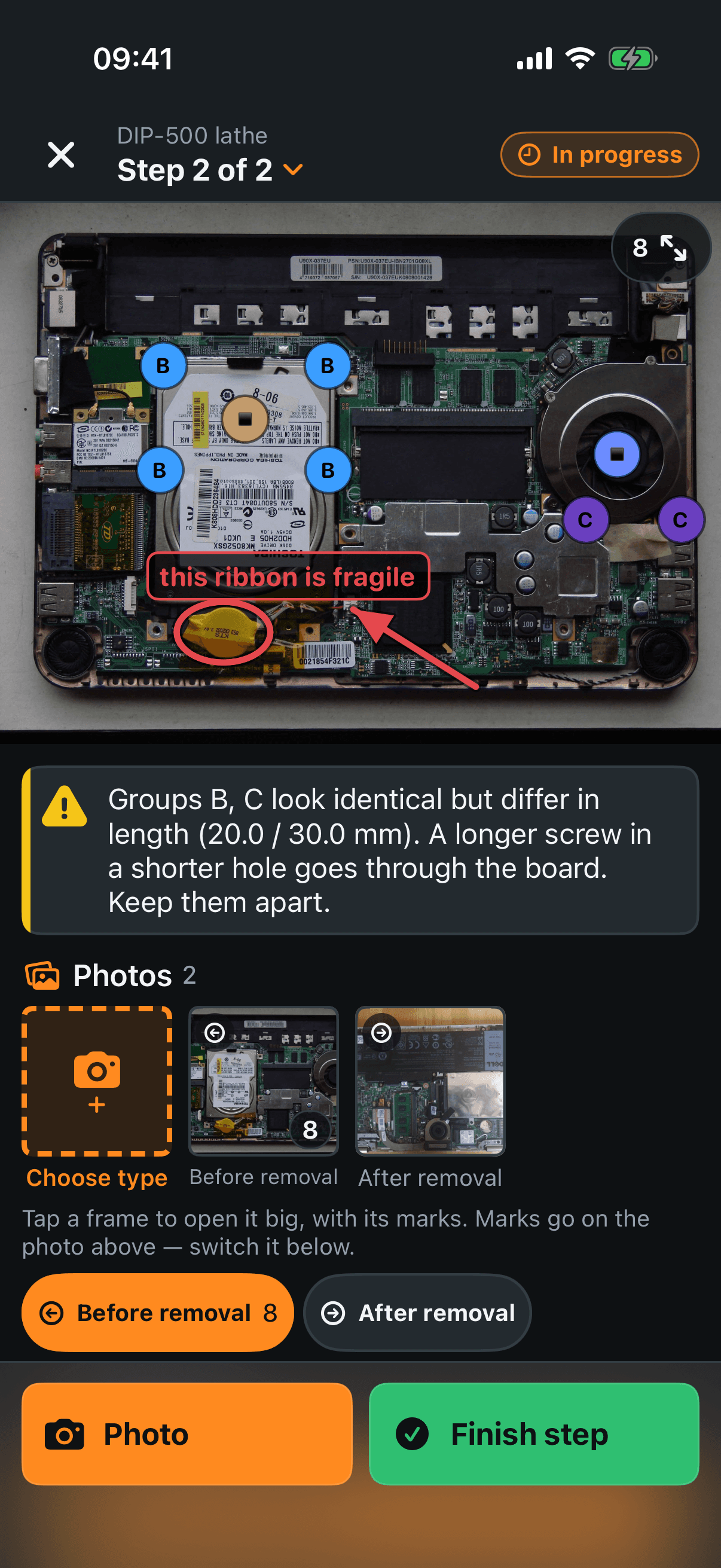
The top of the screen
× — leaves the mode. Nothing is lost and the open step stays open.
Step 2 of 2 — the list of steps, overleaf. Beside it, whether this step is running or finished.
The photo
Tap it — the app asks What is at this spot?: Fastener group, Removed part or Note. After the pile has been described once, every further tap drops another circle of the same group — six screws are six taps.
Drag a circle to move that mark; pinch to zoom in.
Note — about the spot rather than a thing in it. Empty words are allowed: a note is often made to be spoken instead.
The arrows in the corner — the same photo full screen, for aiming at a hole a few pixels wide. Section 4.
The yellow banner — look-alike piles whose lengths differ: a long screw in a short hole goes through the board. It also refuses two piles sharing one cup.
Photos and what they are of
Choose type — raises the camera. Seven choices say what the shot is of the place: overview, before and after removal, close-up, nameplate, cable, damage. Two more make a record — Fastener group and Parts removed shoot what is in your hand and open its form with the photo on it.
The chips under the strip — which photo your taps land on; marks always go on the photo at the top. Tapping a thumbnail instead opens that frame full screen, with its own marks.
Down the list
Voice note — hold the button and say it. Once recorded: play, length, date and a bin, but no record button — recording over it would destroy the old sentence silently.
Step clip — up to fifteen seconds of movement, played back at full, half or quarter speed. Delete before filming again.
Note cards — one per note mark above: the words, its own voice note, and Remove this mark.
Fastener groups and Parts removed — one row per pile and per part, each with its own photos under it. Tap for the form (section 5) or the card (section 6).
Undo — appears in the bottom panel as soon as there is something to undo: a step moved, a pile or a part deleted. One action only, the last.
The bottom panel
Start step N — begins the next step. Photo and Finish step replace it while a step runs, Reopen appears once it is closed.
Finish step — a summary before the parts leave the bench: title, tools, hazards, and what the step holds.
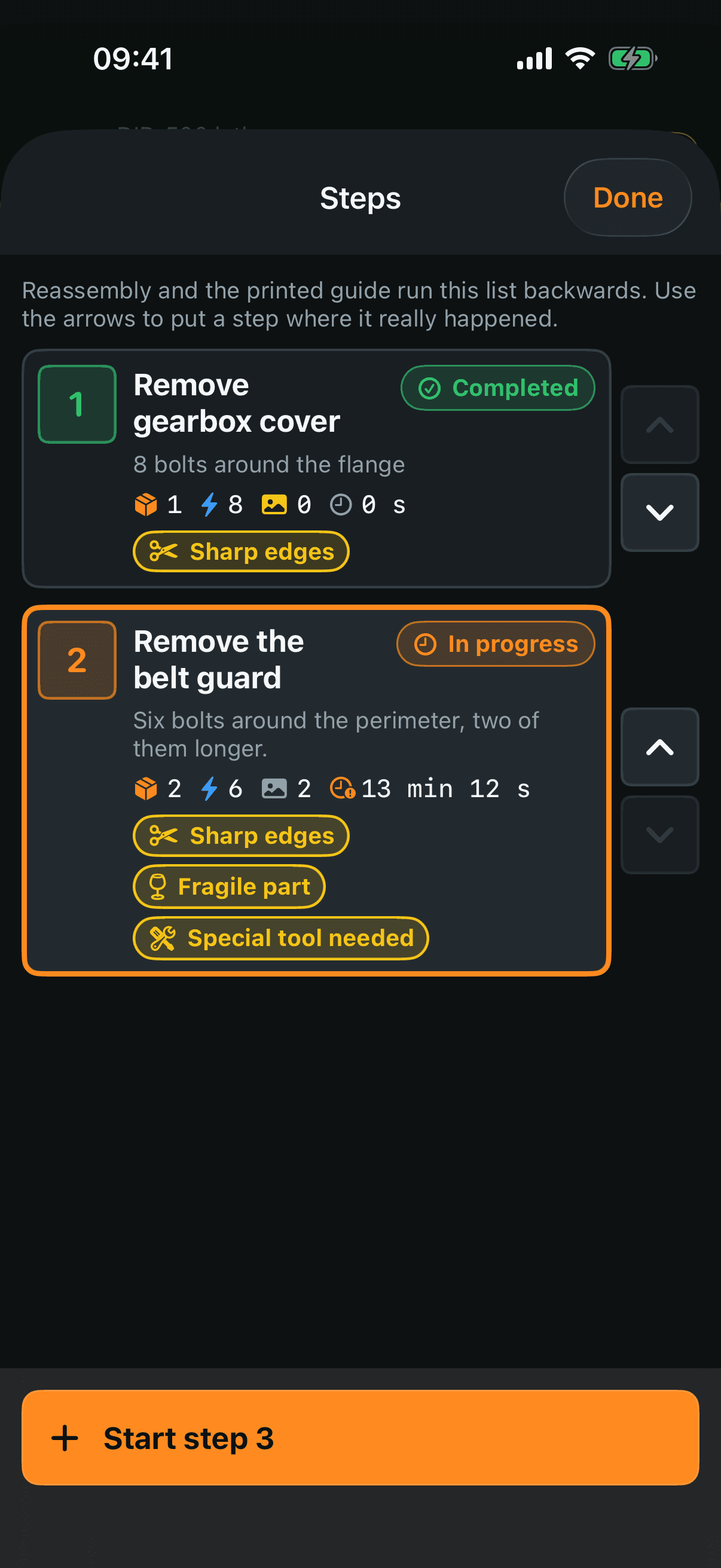
A row — its number, title and what you wrote about it, then what it holds: parts, fasteners, photos and the time you spent. Yellow chips are the hazards you flagged. Tapping a row opens that step.
The two arrows — move that step one place earlier or later. This is the only place in the app where the order changes, and it matters: assembly and the printed manual both run this list backwards. The arrow at each end of the list is switched off rather than silent, because a button that does nothing reads as a fault.
Start step N — adds the next step and takes you to it.
Done — closes the list.
Search
The field appears by itself once the project holds more than thirty records — steps, parts and cups together. On a project of nine there is nothing to search for and it would only be in the way.
What it looks in — cup letters and labels, the name you gave a pile and what kind it is, part names and categories, step titles, step numbers, descriptions, tools, warnings, and the words of every note left on a photo.
A result — its icon, its name, where it sits and what kind of thing it is. Tapping one takes you to the thing itself: the screen moves to its step and the form or card opens on top.
A single letter is read as a cup letter or a step number, not as part of a word — otherwise “b” drags out half the project. From two letters on it matches inside words again.
While you are searching the arrows are gone, and the line under the field says so. “One place up” in a filtered list would not mean what you see: the neighbour on the screen is not the neighbour in the teardown.